Scan Documents to PDF on Your Phone, the Right Way
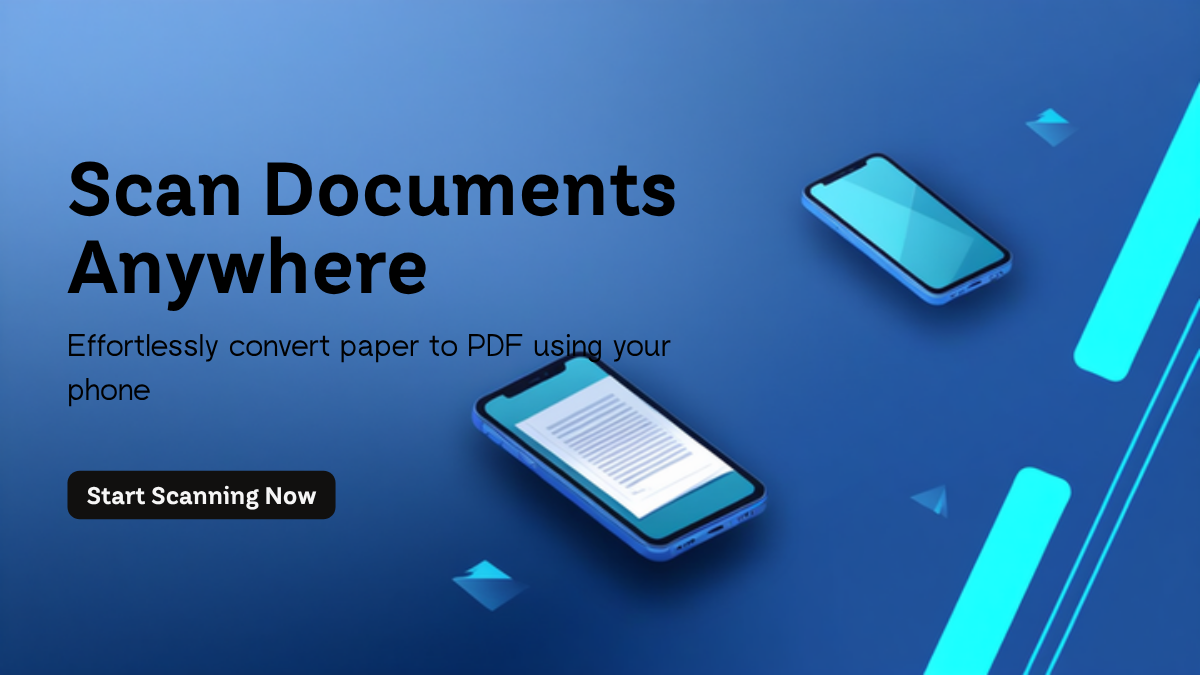
How do you scan documents to PDF on a phone? Use the scanner already on your phone: Notes or Files on iPhone, Google Drive or the Pixel Camera on Android. Shoot the page flat, in daylight, and save it. If you already have photos of the paper, the free FRQ Document Scanner turns them into one clean A4 PDF.
Invoices, receipts, signed contracts and ID copies reach a small business every day. Most people snap a quick photo and send it. The result is dark, tilted and hard to read. A proper scan takes about the same time and looks like it came from an office machine.
This guide shows the built in options, the small habits that make scans sharp, and how to name and share the files so they do not get lost.
How do you scan documents to PDF on a phone?
Both big phone systems have a scanner built in. You do not need a new app. Here are the steps from the makers' own help pages.
On an iPhone
Apple lists two easy ways in its guide to scanning documents on iPhone and iPad. The first is the Notes app. Open a note, tap the paperclip button, then tap Scan Documents. Point the camera at the page. In Auto mode the phone takes the picture for you. Drag the corners so they sit on the edges of the paper, then tap Keep Scan.
The second way is the Files app. Tap the three dots, choose Scan Documents, scan the same way, then pick a folder and tap Save. You can add more pages to the same scan before you finish.
On an Android phone
Google explains the steps in its Google Drive scan help page. Open the Drive app and tap the camera icon at the bottom right. A blue outline shows the part that will be cropped. After the photo you can crop, rotate, change the filter, clean off marks, or add another page. Tap Done, type a file name, choose PDF, and tap Save.
On a Pixel phone, the Camera app can also do it. Google's Pixel Camera help says to wait for the "Scan document" prompt, tap it, and then choose Save, Download or Share.
Flow chart: five steps from paper to a shareable PDF scanPaper to PDF in five steps1. Set upFlat paper, dark table, daylight2. CaptureStraight from above, no shadow3. FixCrop corners, rotate, pick a look4. Name and saveDate, who, what, in the right folder5. ShareSend only what the other side needsSteps 1 to 3 decide how good the scan looks.Steps 4 and 5 decide if you can find it later.A simple routine for every business document.Which method should you pick?
| Method | Works on | Good for | Watch out for |
|---|---|---|---|
| Notes, Scan Documents | iPhone, iPad | Quick scans you may want to sign | The scan lives inside a note |
| Files, Scan Documents | iPhone, iPad | Saving straight into a folder | You must choose a folder every time |
| Google Drive camera icon | Android | Crop, clean, filter, save as PDF | Needs the Drive app and a Google account |
| Pixel Camera, Scan document | Pixel phones | Fast scans without opening an app | Only on Pixel phones |
| FRQ Document Scanner | Any phone or computer browser | Fixing photos you already took, up to 60 pages | You must take the photos first |
Why do phone scans look dark or crooked?
Most bad scans come from the photo, not the app. Three things cause nearly all of the trouble: a tilted camera, a shadow on the page, and poor light.
The fix is easy. The FRQ Document Scanner page gives the same advice: photograph the paper from directly above, put it on a dark surface, use daylight, and keep your own shadow off the page. A dark table also helps the phone find the edges of the paper, because white paper on a white desk blends in.
Two more habits help. Flatten folded pages before you shoot. And keep the whole page inside the frame, with a small gap around it, so the corners are not cut off.
What if you already took the photos?
This happens all the time. A client sends five WhatsApp photos of a signed form. You cannot retake them. You still need one tidy PDF.
Open the FRQ Document Scanner. It takes JPG, PNG or PDF files, up to 60 pages. It finds the paper in each photo, and you can crop and straighten each page, rotate it, change the order, or remove pages you do not need. Then you download one A4 PDF, or the pages as separate images.
The page says all the work happens in your browser and the files stay on your device. That matters when the paper holds an ID card or a contract. Even so, use a private browser window on a shared computer, and close it when you finish.
Which look should you choose?
The tool offers five looks. Pick by what the paper is and where it will go.
| Look | What it does | Best for |
|---|---|---|
| Clean scan | White background, keeps colour | Invoices with logos, colour forms |
| Black and white | Sharp text, small file | Text contracts, emailing many pages |
| Grayscale | Removes colour, keeps shading | Stamps, signatures, mixed pages |
| Scanned look | Grayscale with slight grain, tilt and edge shadow | Documents that should look like a real scan |
| Original | No change | When the photo is already good |
For most business paper I start with Black and white. It gives sharp text and a small file. If a stamp or a coloured logo matters, switch to Clean scan.
If you need to shrink the photos before you scan them, use the Smart Image Compressor. If you only have a stack of plain images and want a quick PDF, the PNG to PDF Converter does that. And if you need the pages back as pictures later, my guide on converting PDF to PNG and when not to explains the trade offs.
How do you name and store scanned documents?
A sharp scan called IMG_2041.pdf is almost as useless as a blurry one. You will not find it in three months. A file name is the cheapest part of any CRM or Google Sheets system I build, and it saves the most time.
Use one pattern for every file. A good pattern is date, company, document type, and amount or number. For example: 2026-10-26_ABC-Traders_invoice_1042.pdf. Start with the year so files sort in time order. Use hyphens, not spaces, so links do not break.
Keep one folder per client or per month, not one big pile. If you track leads or orders in a sheet, paste the file link next to the row. Then the paper trail follows the customer. My post on WhatsApp lead management shows how to keep a simple log like that.
How do you share a scan safely?
Scans of IDs, bank slips and contracts are private. Send them only to people who need them. Do not post them in a big group chat.
If the file is too big for email, a link is better than an attachment. The Simple File Share Tool is one option. Whatever you use, protect the folder with a strong password. See how to create strong passwords for business accounts for an easy method.
Which papers should a small business scan first?
Start with the papers that cause the most trouble when they go missing. Do not try to scan the whole office in one weekend. You will give up halfway.
A simple order works well. First, signed contracts and agreements, because you may need to prove them. Second, supplier invoices and receipts, because you need them when you pay or when someone asks. Third, quotes and delivery notes. Last, old letters and anything you only keep out of habit.
Then make it a rule: every new paper gets scanned the same day it arrives. Five minutes a day is easier than a huge pile at the end of the month. Keep the paper original in a labelled box, in case an office asks for it later.
Quick answers
Do I need a scanner app?
No. iPhone has Scan Documents in Notes and Files. Android has the camera icon in Google Drive. Pixel phones can also scan from the Camera app.
Why is my scan file so big?
Colour photos are large. Choose Black and white for text pages, and scan fewer pages per file. Also check that you are not saving a full camera photo as an image inside the PDF.
Is a phone scan the same as a legal copy?
Not always. Some banks, courts and offices ask for the original or a certified copy. Check the rules of the office that asked for it. I am not a lawyer.
If your team still scans, renames and emails paper by hand, there is a better way. I build custom CRM and business automation systems that file documents against the right customer for you. Get in touch here and tell me what slows you down.
Related reading
Want this built for your business?
Tell us what slows you down. We reply on WhatsApp within an hour with a plan and a fixed price.