
Schedule WhatsApp Messages on PC: 4 Real Options
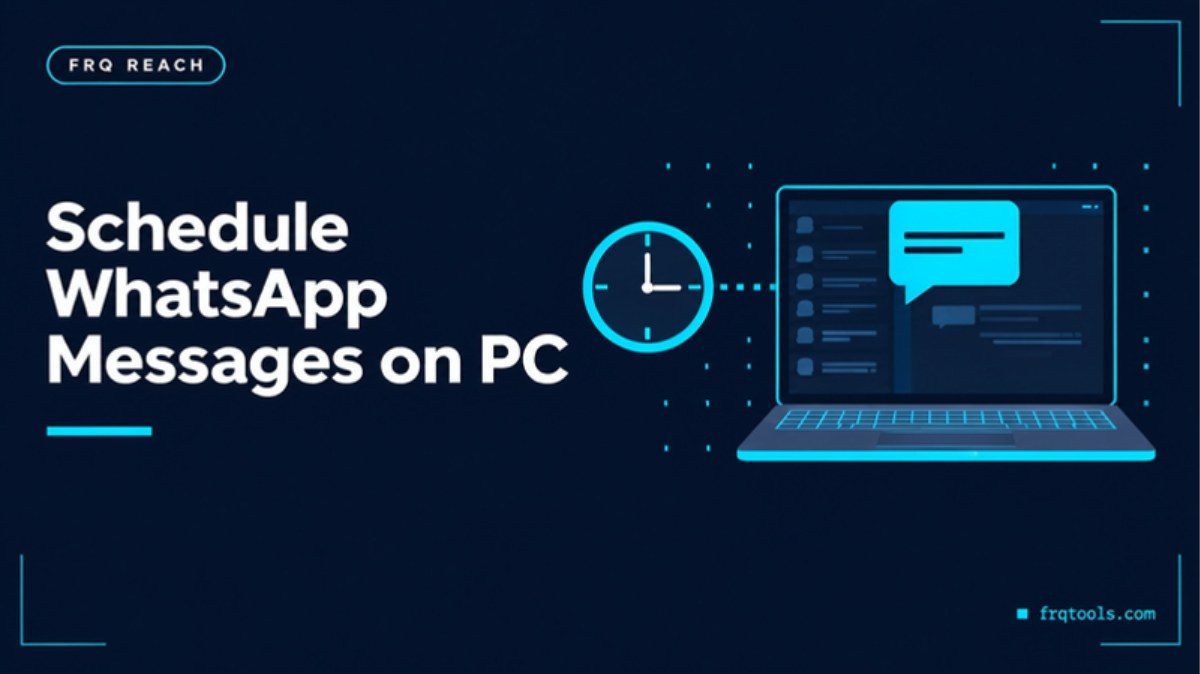
You can schedule WhatsApp messages on a PC, but WhatsApp itself will not do it for you. The normal app has no "send later" button. You need a browser extension, an official API platform, or a desktop app such as FRQ Reach. Each way has limits, and I explain all four below in plain words.
I build tools and CRM systems for small businesses from Lahore. "Can I send this tomorrow at 9 am?" is one of the most common questions I hear. This guide shows what works, what does not, and what you should check before you trust any scheduler with your customers.
One honest note first. WhatsApp's own Terms of Service list bulk messaging and auto-messaging as impermissible communication. Scheduling does not change that rule. Any tool that sends messages for you lowers risk or raises it, but it never removes it.
Does WhatsApp have a built-in scheduler on PC?
No. As far as I know, and as the SleekFlow scheduling guide also says, WhatsApp does not have a built-in "send later" feature. This is true on the phone and on the PC.
There is one small exception for businesses. The WhatsApp Business app has away messages. You can set a message that goes out automatically when a customer writes to you, at all times, on a custom schedule, or outside your business hours. That is a scheduled reply. It is not a scheduled message that you send first.
So the real question is simple: do you want a reply at the right time, or an outgoing message at the right time? The table below shows the difference.
| Way | Sends first? | Good for | Watch out for |
|---|---|---|---|
| Away message (WhatsApp Business app) | No, replies only | "We are closed, we will reply in the morning" | Cannot start a chat or send a list |
| Browser extension | Yes, one chat at a time | A few reminders to a few people | Not built for lists, and you must check each tool's own rules |
| Official API platform | Yes, with approved templates | Large, permission-based campaigns | Monthly fees, template approval, per-message charges |
| Desktop app (FRQ Reach) | Yes, to a whole list | Scheduled campaigns from your own PC | PC must stay on and online, and it is bulk sending |
Which way should you pick? A simple decision chart
Use this picture to find your path in ten seconds.
Decision chart: how to schedule WhatsApp messages on a PCWhat do you want to schedule?A reply to peoplewho message meA message I sendat a set timeAway messageBusiness app, freeFew peopleExtensionA whole listPick belowFrom my own PCDesktop appBig andofficial: APIFRQ Tools. Pick the lightest option that does the job.Start with what you want to schedule, then pick the lightest tool that does the job.Can a browser extension schedule WhatsApp messages?
Yes, for a small job. Extensions such as Blueticks and Send Later for WhatsApp add a clock or plus icon next to the message box in WhatsApp Web. You write the message, choose a date and time, and the extension sends it. The steps are the same idea in the guides I read, including the SleekFlow guide.
This works well for reminders to a few people. It is not built for a list of 500 customers. It also depends on your browser and your computer, so check each tool's own page to see whether the browser must stay open. None of the guides I read explain the ban risk of extensions in a checked way, so I will not promise anything about it either.
What about the official WhatsApp API?
The official route is the WhatsApp Business Platform, through a provider. You send approved templates to people who agreed to hear from you. It is the correct choice for large, permission-based campaigns, and it is where scheduling is built in at the platform level.
It costs more and takes more set-up. You pay provider fees and Meta's message charges. My post on WhatsApp service message charges explains what changed this year. For a shop owner who just wants a Friday offer to go out at 5 pm to a customer list, it is often more than the job needs.
How does FRQ Reach schedule WhatsApp messages from a PC?
FRQ Reach is a Windows 10 or 11 app that sends WhatsApp and WhatsApp Business messages from your own computer. You link your number once by scanning a QR code from your phone. It has scheduled campaigns on the Pro and Agency plans, and the product page says the dashboard shows what goes out next.
Here is what the product page says about running a schedule, and I will not add more than it says:
Messages go out from your PC, so the PC must be on and online while a campaign runs.
If your number goes offline, a campaign pauses by itself and continues when the number is back.
When you close the window, the app keeps running in the tray, and it can start with Windows.
Random delays, breaks, sending hours and daily limits help keep the sending pattern careful. Random delays, daily limits and number warm-up are on by default.
Your linked numbers, contact lists and campaigns stay on your computer. The app only checks your license key with FRQ Tools.
This matters because a scheduled send is only as safe as the habits around it. A good schedule is not "all 500 messages at 9:00 sharp". It is a slow, spread-out run inside normal hours with a daily limit. If your number is new, read my 14-day warm-up plan first.
Which FRQ Reach plan includes scheduling?
This is what the product page shows today. Prices can change, so the plans table is always the final answer.
| Plan | Price | Numbers | Scheduled campaigns | Auto-reply |
|---|---|---|---|---|
| Free trial (3 days) | Free, no card | 1 (20 messages a day) | No | No |
| Starter | $9 or PKR 2,500 a month | 1 | No | No |
| Pro | $19 or PKR 5,000 a month | 3 | Yes | Yes |
| Agency | $39 or PKR 10,000 a month | 10 | Yes | Yes |
The page also shows a founding offer on Pro: the first 10 buyers get Pro for the Starter price for as long as they stay subscribed. Plans do not renew automatically, and you can pay by card, JazzCash, Easypaisa or bank transfer. A year gives you two months free.
The trial is the right place to start. Download the free trial and read the install guide to see how it feels on your PC. Scheduling is on the paid plans, so when you are ready, look at the Pro plan.
How do you keep a Windows PC awake for a scheduled send?
A scheduler cannot send from a sleeping computer. This is the number one reason scheduled messages do not go out. Before the big day, check your sleep settings.
Microsoft's page on power settings in Windows 11 explains the steps. Open Start, then Settings, then System, then Power & battery. Under "Screen, sleep, & hibernate timeouts", set how long the PC waits before it sleeps. A longer wait, or "Never" while plugged in, keeps the PC awake. Microsoft's page does not say what happens when you close a laptop lid, so test that yourself before you rely on it.
Here is the short checklist I give clients:
Plug the laptop into power.
Set the sleep timer to a long time while plugged in.
Keep internet on and stable. Mobile hotspot data runs out fast.
Keep your phone charged and online, because the number is linked from it.
Send a small test to your own number a day before.
How do you set a safe schedule for bulk messages?
Whatever tool you pick, these habits matter more than the tool.
Clean the list first
Wrong and dead numbers hurt you. Put every number in one international format. The free Phone Number Formatter does it in your browser, and my guide on converting phone numbers to international format explains why.
Pick a sensible time
Send in normal waking hours of your customer, not at 2 am. In Pakistan and the Gulf, many shops see better replies in late morning or early evening, but test it with your own list. I have no study to quote on the best hour, so treat any "perfect time" you read online with care.
Message people who agreed
Use old customers and people who wrote to you first. A bought list is the fastest way to get blocked. If you are unsure about group lists, read how to save numbers from a WhatsApp group safely.
Do not send the same text to everyone
Use the customer's name and keep the message short and useful. My guide on sending bulk WhatsApp messages without getting banned covers the full list of habits.
What if SMS is the better choice for a scheduled reminder?
For a plain reminder, SMS can be simpler. It needs no WhatsApp account at all. FRQ SMS Sender is a free Android app that sends bulk SMS from your own phone and SIM, with no per-message fee from the app. Your normal mobile package still applies.
The short version
WhatsApp has no built-in scheduler on PC. A Business app away message only replies. An extension suits a few chats. The official API suits large, permission-based work. FRQ Reach suits a shop that wants scheduled campaigns from its own Windows PC, on the Pro or Agency plan, with the PC on and online. It lowers risk. It does not remove it, and it is not made, linked to or approved by WhatsApp or Meta.
Need a full system with leads, follow-ups and reports instead of one more tool? I do custom CRM and automation work for small businesses. Contact me here and tell me what you are trying to fix.
Related reading
Want this built for your business?
Tell us what slows you down. We reply on WhatsApp within an hour with a plan and a fixed price.